
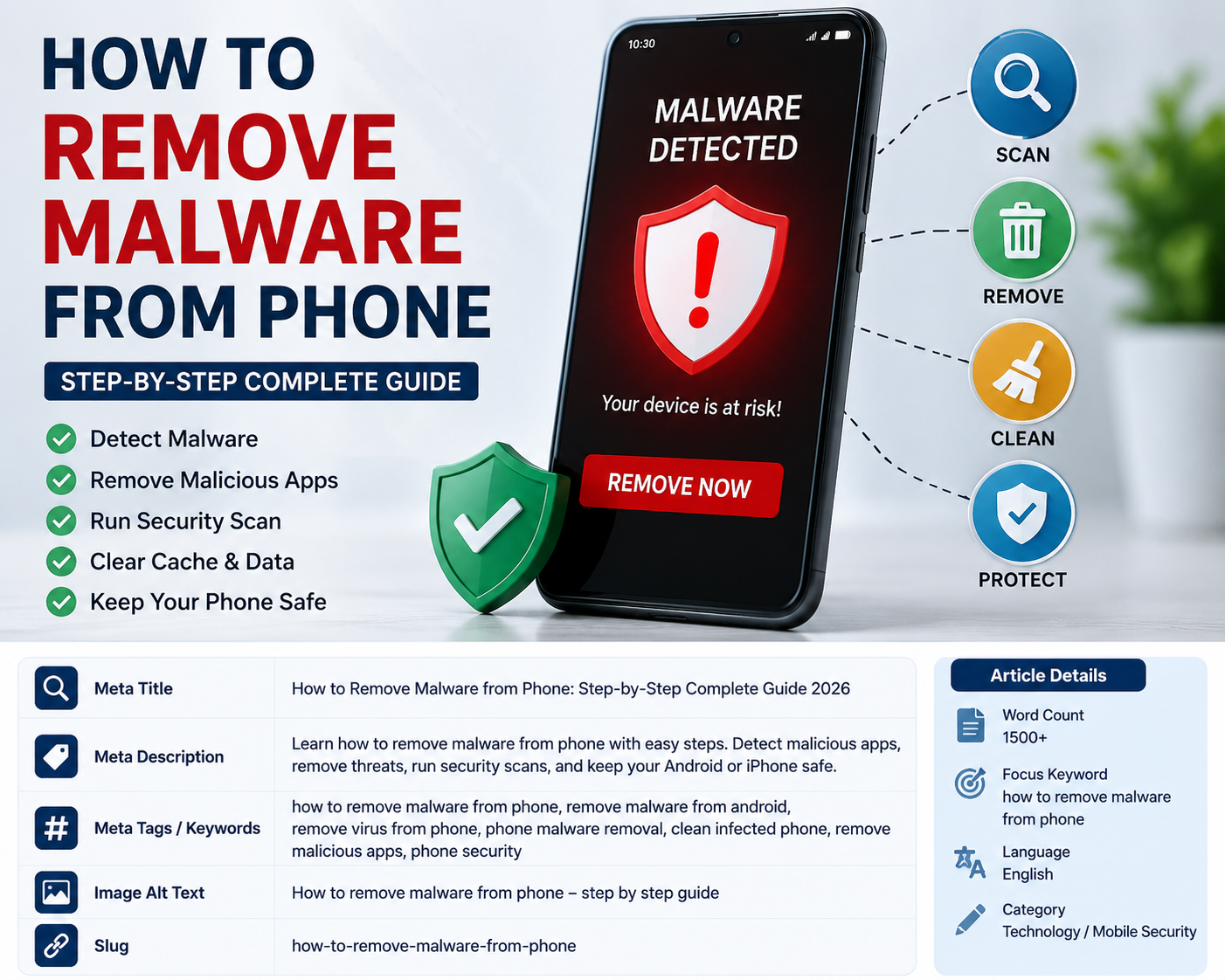
How to Remove Malware From Phone: A Complete Guide
A smartphone can contain years of personal photos, messages, contacts, documents, banking apps, and other important information. That is why discovering suspicious behavior on your phone can be worrying. If your device suddenly shows excessive pop-ups, becomes unusually slow, overheats, installs unfamiliar apps, or redirects you to strange websites, malware could be one possible cause.
The good news is that many common mobile malware problems can be addressed with a few careful steps. In this guide, we’ll explain how to remove malware from phone safely, how to identify possible warning signs, and what you can do to prevent similar problems in the future.
What Is Phone Malware?
Malware is malicious software designed to perform unwanted or harmful activities on a device. On smartphones, malware can appear in different forms, including malicious apps, spyware, adware, banking malware, and other unwanted programs.
A phone may become infected after downloading an application from an unreliable source, clicking a suspicious link, installing modified software, or interacting with a deceptive website.
Not every unusual phone problem means malware is present. Battery drain, overheating, slow performance, and pop-ups can also have ordinary technical causes. Therefore, it is important to investigate before deleting important files or resetting the device.
Common Signs of Malware on a Phone
Knowing the warning signs can help you determine whether your phone needs further investigation.
1. Unusual Pop-Ups
Unexpected advertisements appearing outside normal apps or while browsing can be a warning sign, particularly if they continue appearing after closing your browser.
2. Unknown Apps
Check your installed applications regularly. If you find an app you do not recognize, investigate it before opening or interacting with it.
3. Battery Draining Quickly
Malicious software running continuously in the background can potentially consume additional battery power. However, an aging battery or a demanding app can cause the same symptom.
4. Excessive Data Usage
Unexpected increases in mobile data usage may indicate that an application is communicating in the background. Check your phone’s data-usage settings to identify which apps are consuming the most data.
5. Slow Performance
A sudden decrease in performance can have many causes, including insufficient storage, outdated software, background applications, or malware.
6. Browser Redirects
If your browser repeatedly redirects you to unfamiliar websites or changes its search settings without permission, check for unwanted apps, browser settings, and suspicious extensions where applicable.
How to Remove Malware From Phone
If you suspect that your device has malware, don’t panic. Start with the least disruptive steps and move toward more advanced measures only when necessary.
Step 1: Disconnect From the Internet
If you believe malicious software may be actively communicating with external servers, temporarily disable Wi-Fi and mobile data.
This can also prevent you from accidentally interacting with suspicious online content while investigating the problem.
You can usually do this by enabling Airplane Mode or manually turning off Wi-Fi and mobile data.
Step 2: Identify Suspicious Apps
Open your phone’s application settings and review the complete list of installed apps.
Look for applications that:
- You don’t remember installing
- Have unusual names or icons
- Were installed shortly before the problem started
- Request permissions that don’t make sense
- Come from an unfamiliar source
Don’t remove essential system applications simply because their names look unfamiliar. Some Android and iOS components are necessary for the phone to operate correctly.
Step 3: Uninstall Suspicious Applications
If you identify an app that is clearly unwanted, uninstall it through your phone’s normal application-management settings.
On Android, you can generally open the app information page and select the uninstall option.
On iPhone, press and hold the application icon and use the available removal option.
If an application refuses to uninstall, continue with the security and permission checks described below rather than repeatedly trying to remove it.
Step 4: Check App Permissions
Permissions determine what an application is allowed to access.
Review permissions for suspicious or unfamiliar applications. Pay particular attention to access involving:
- Camera
- Microphone
- Contacts
- Location
- SMS
- Phone calls
- Files and photos
- Accessibility features
An application requesting broad permissions does not automatically mean it is malware, but permissions should make sense for the app’s purpose.
For example, a simple flashlight application generally should not need access to your contacts or text messages.
Step 5: Run a Security Scan
On supported Android devices, use the built-in security features available through the operating system and your device manufacturer.
You can also use a reputable mobile security application if you need additional scanning capabilities. Download security software only from a trusted official app store or the security company’s legitimate website.
Avoid installing random “virus cleaner” applications from advertisements or unfamiliar websites. Some apps claiming to remove malware can themselves be unwanted or misleading.
Step 6: Update Your Phone
Keeping your operating system and applications updated is an important security measure.
Updates can contain security patches that address known vulnerabilities. Check your phone’s system-update settings and install available updates from the official device manufacturer or operating-system provider.
You should also update important applications through the official app store.
Step 7: Clear Suspicious Browser Data
If the problem mainly occurs while browsing the web, clearing browser data can help remove unwanted website settings, cached information, and browsing-related data.
Open your browser’s privacy or history settings and review the available options.
Keep in mind that clearing browser data does not necessarily remove a malicious application installed on your phone. It is therefore better to combine this step with an app and security review.
What If Malware Keeps Coming Back?
If suspicious behavior continues after removing an unfamiliar application, investigate recently installed apps and device permissions again.
You should also check whether the problem is caused by a browser notification subscription. Some websites can persuade users to allow notifications, after which misleading advertisements may appear as phone notifications.
Disable notifications from websites or browsers that you don’t recognize.
If the phone continues behaving abnormally despite these steps, a factory reset may be appropriate.
How to Factory Reset a Phone
A factory reset removes user data and returns the device to its default state. It can be an effective last-resort solution for persistent malware problems, but it should not be your first step.
Back Up Important Files First
Before resetting your phone, make sure important photos, contacts, documents, and other files are backed up safely.
Do not restore suspicious applications or unknown files immediately after the reset.
Perform the Reset Through System Settings
Use the reset option provided by your phone’s official system settings rather than following instructions from an unfamiliar website.
The exact menu differs between Android devices and iPhones, so check the official documentation for your device.
After the reset, install system updates and download applications only from trusted sources.
Protect Your Accounts After a Malware Incident
If you suspect malware may have accessed sensitive information, protecting your online accounts is important.
Consider changing passwords for important accounts, especially if you entered passwords while the device was behaving suspiciously.
Prioritize accounts such as:
- Banking and financial services
- Social media
- Cloud storage
- Shopping accounts
- Work accounts
Use unique passwords and enable two-factor authentication whenever possible.
If you suspect that financial information may have been exposed, contact your bank or financial institution using its official contact information.
Avoid Downloading Apps From Unknown Sources
One of the simplest ways to reduce mobile malware risks is to be careful about where you download applications.
Official app stores aren’t completely immune to malicious or deceptive applications, but they generally provide more safeguards than random download websites.
Avoid installing modified or pirated versions of paid applications simply because they are offered for free. These packages can be altered and may contain unwanted software.
Be Careful With Suspicious Links
Malware isn’t always delivered through an application. Phishing messages can also direct users toward websites that attempt to trick them into downloading software or entering sensitive information.
Be cautious when receiving unexpected messages containing:
- Urgent account warnings
- Fake delivery notices
- Unusual payment requests
- Prize claims
- Suspicious shortened links
- Requests to install an application
When in doubt, visit the company’s official website or app directly rather than clicking the link in the message.
Android vs. iPhone Malware
Android and iPhone devices have different security models, so the steps for investigating suspicious behavior can vary.
Android users generally have more flexibility when installing applications, particularly when apps are installed outside official stores. This flexibility can also increase the risk of installing an unsafe application.
iPhones use a more controlled application ecosystem, but that doesn’t mean users are completely protected from scams, malicious websites, phishing, or compromised accounts.
In both cases, keeping the operating system updated and avoiding suspicious downloads are important security habits.
When Should You Seek Professional Help?
If you have tried the normal troubleshooting steps and your phone continues to show serious problems, professional assistance may be appropriate.
Seek help particularly if:
- Important accounts may have been compromised
- Banking information may have been exposed
- You cannot remove a suspicious application
- The phone repeatedly installs unwanted software
- The device remains compromised after a factory reset
- You suspect targeted spyware
When seeking assistance, use a reputable repair shop, manufacturer support service, or qualified cybersecurity professional.
How to Prevent Future Malware Problems
Once you’ve cleaned your device, prevention is the next priority.
Follow these basic practices:
- Keep your operating system updated.
- Install apps from trusted sources.
- Review application permissions.
- Avoid pirated applications.
- Don’t click suspicious links.
- Use strong, unique passwords.
- Enable two-factor authentication.
- Keep regular backups.
- Remove applications you no longer use.
- Be careful with unexpected messages and downloads.
These habits can significantly reduce your exposure to common mobile threats.
Final Thoughts
Learning how to remove malware from phone can help you respond calmly when your device starts behaving strangely. Start by disconnecting from the internet, reviewing recently installed applications, removing suspicious software, checking permissions, and running reputable security checks. Keeping your operating system updated is equally important.
If the problem persists, backing up important information and performing a factory reset can provide a clean starting point. Afterward, avoid restoring questionable applications and strengthen the security of your important accounts.
Most importantly, don’t assume every slow phone or battery problem is malware. Investigate the symptoms carefully and use trusted tools and official support resources whenever possible.
FAQs
Can I remove malware from my phone without resetting it?
Yes. Many unwanted apps and common mobile security problems can be addressed without a factory reset. Try removing suspicious applications, checking permissions, updating the device, and running a reputable security scan first.
How do I know if my phone has malware?
Unexpected pop-ups, unknown applications, unusual data usage, browser redirects, and sudden performance changes can be warning signs. However, these symptoms can also have non-malicious causes.
Does deleting a suspicious app remove malware?
If the unwanted software is contained within that application, uninstalling it may resolve the problem. If suspicious behavior continues, additional investigation may be necessary.
Can malware steal passwords from a phone?
Some types of malware can attempt to capture sensitive information. If you believe your phone has been compromised, consider changing important passwords from a trusted device and enabling two-factor authentication.
Is a factory reset enough to remove phone malware?
A factory reset can remove many software-based problems, but you should still update the operating system afterward and avoid restoring suspicious applications or files.
Should I install a phone cleaner to remove malware?
Be cautious. Don’t install an unfamiliar cleaner simply because an advertisement claims your phone is infected. Use built-in security features or reputable security software from a trusted source.