Shotscribus Explained: What It Is, Whether It Is Scribus and How to Use It Safely
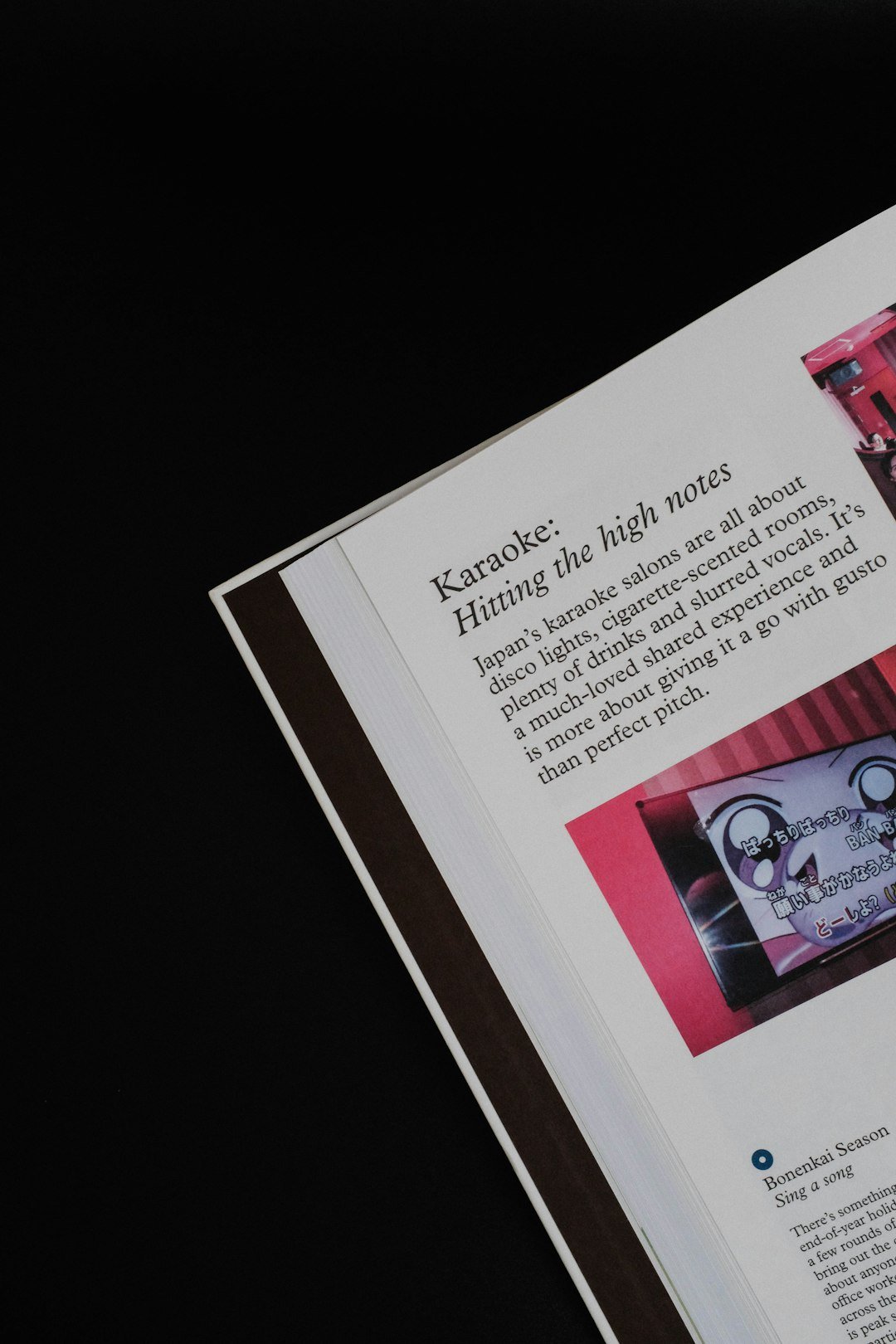
Shotscribus is a common misspelling or confused name for Scribus, a free, open-source desktop publishing program used to design newsletters, brochures, posters and books. It runs on Windows, macOS and Linux and exports print-ready PDFs. Download it only from the official Scribus website to avoid fake installers.
Written by the SosoActive team. Last updated: October 14, 2026.
Table of Contents
- What is Shotscribus?
- Why the name causes confusion
- Key features of Scribus
- Scribus compared with other tools
- How to download it safely
- How to create your first layout
- Two practical examples
- Common mistakes
- Frequently asked questions
Key Takeaways
- Shotscribus usually means Scribus, not a separate program.
- Scribus is free, open-source and made for page layout and print.
- It supports CMYK color and press-ready PDF export.
- Beginners may need time to learn its frame-based way of working.
- Always download from the official website and check the file before you open it.
What Is Shotscribus?
“Shotscribus” is a name that people type when they look for Scribus. Scribus is free and open-source desktop publishing software. It is designed for layout, typesetting and preparing files for professional printing. In simple words, it lets you place text and pictures on a page and control exactly how they look.
The program has existed since 2001 and is developed by the Scribus Team. According to its Wikipedia entry, people use it for newspapers, brochures, newsletters, posters and books. It can also make interactive PDF forms and presentations.
Why Does the Name Cause Confusion?
Several websites treat “Shotscribus software” as if it were its own product. Some even describe it with personal stories and download steps. However, the name looks like a mix of two words: “shot”, as in screenshot, and “Scribus”. One review page even notes that the name gets confused with screenshot and screen capture tools.
This matters for safety. When a name is not official, fake websites can use it to attract downloads. Therefore, search for Scribus when you want the real program, and compare any “Shotscribus” page with the official project.
What Are the Key Features of Scribus?
Scribus focuses on print-quality layout. Its main strengths include:
- Frame-based layout: You place text and images in frames, which keeps pages tidy.
- CMYK and spot colors: These are important for professional printing.
- ICC color support: This helps keep colors consistent.
- Press-ready PDF export: You can create PDF files that a print shop can use.
- Interactive PDFs: You can add forms and buttons to PDF documents.
- Cross-platform support: It is available for most desktop operating systems.
At the time of writing, its Wikipedia page lists version 1.6.6 as the stable release from April 2026. Because versions change, check the official site for the newest one.
How Does Scribus Compare With Other Tools?
No tool is best for every job. This table gives a simple picture:
| Tool | Cost | Best for | Learning curve |
|---|---|---|---|
| Scribus | Free and open-source | Print layouts, newsletters, books | Moderate to high |
| Canva | Free and paid plans | Quick social and web graphics | Low |
| Adobe InDesign | Paid subscription | Professional publishing workflows | Moderate to high |
In short, choose Scribus if you want serious print control without paying. Choose a simpler tool if you only need a quick graphic.
How Do You Download Scribus Safely?
Safe downloading is the most important step. Follow this checklist:
- Open the official Scribus website and use the download links listed there.
- Pick the version that matches your operating system.
- Avoid pages that promise a “cracked”, “pro” or “full version” of Shotscribus. The real program is already free.
- Check the file name and size before you open it.
- Run a security scan on the installer if you are unsure.
If you installed something suspicious, read our guide on how to remove malware and change your important passwords. Also, if your computer feels slow while you work on large layouts, try our tips to fix a slow laptop on Windows 11.
How Do You Create Your First Layout?
Scribus feels different from simple design apps, so go step by step:
- Create a new document. Choose the page size, margins and, for print jobs, the bleed that your printer asks for.
- Set up a master page. Put repeating items, such as page numbers, here once.
- Add text frames. Type or import your text into frames.
- Add image frames. Place your pictures and fit them inside the frames.
- Use styles. Set paragraph styles for headings and body text so the design stays consistent.
- Check colors and fonts. Use CMYK colors for printing and make sure your fonts are embedded.
- Run the preflight check. Scribus can warn you about common problems before export.
- Export to PDF. Choose the export settings your printer recommends.
Save your work often. In addition, keep a copy online. Our guide to free cloud storage options can help you protect your projects.
Two Practical Examples
These are illustrative scenarios, not reports of real projects.
Example 1: A school newsletter. A teacher creates a four-page newsletter. She builds one master page with the school name and page numbers, adds frames for articles and photos, and exports a PDF for printing and email. Because the layout is saved, next month’s issue takes much less time.
Example 2: A small business brochure. A shop owner designs a folded brochure. He sets the page size and bleed with his print shop, uses CMYK colors and runs the preflight check. The printer receives a clean PDF, so fewer corrections are needed.
What Are the Common Mistakes?
- Downloading from random sites. Use the official source only.
- Skipping bleed and margins. This can cut off text or images when you print.
- Using RGB images for print without checking. Colors may look different on paper.
- Forgetting to embed fonts. Your PDF may then look different on another computer.
- Ignoring styles. Manual formatting takes longer and creates inconsistent pages.
If you also want to learn more about software tools and safe learning, see our guide to software Programgeeks.
Frequently Asked Questions
Is Shotscribus the same as Scribus?
In most cases, yes. People type “Shotscribus” when they mean Scribus, the open-source desktop publishing program. Some pages treat it as a separate product, so confirm everything on the official Scribus website before you download.
Is Shotscribus free?
Scribus is free and open-source, so you do not need to pay for it. If a page asks for money to unlock a “pro” or “full” version of Shotscribus, treat it as suspicious and leave the page.
Is it safe to download Shotscribus?
It is safe when you download Scribus from its official website. Third-party pages can bundle unwanted files. Check the file name and size, avoid cracked versions and scan the installer if you feel unsure.
What is Scribus used for?
People use it to design newsletters, brochures, posters, magazines and books. It also supports interactive PDF forms. Its main strength is print-ready output, with support for CMYK colors and professional PDF export.
Is Scribus good for beginners?
It can be, but expect a learning curve. Scribus uses frames for text and images, which feels different from simple design apps. Start with a small project, such as a one-page flyer, and learn styles and master pages as you go.
Does Scribus work on Windows, Mac and Linux?
Yes, Scribus is available for most desktop operating systems, including Windows, macOS and Linux. Support depends on the version, so check the download page to confirm that your system is supported.
Is Shotscribus a screenshot tool?
Not usually. Some pages mix the name with screenshot or screen capture tools because of the word “shot”. If you want to capture your screen, use a dedicated screenshot tool. If you want page layout, look for Scribus.
Conclusion and Next Steps
Shotscribus most likely points to Scribus, a powerful free tool for print layout. The safest path is simple: download it from the official site, start with a small project and learn the basics of frames, styles and PDF export. Begin today by creating a one-page flyer. For more clear, practical guides, visit the SosoActive homepage.