UploadBlog Dashboard: A Complete Beginner’s Guide
The UploadBlog dashboard is the control centre of UploadBlog.com, a free online publishing platform where writers create an account, write articles and publish them without buying hosting or writing code. After signing up and verifying your email, you land on the dashboard — and this guide explains what each section does, how to publish your first post, and the limits to know before you start.
Key Takeaways
- UploadBlog.com is a free online publishing platform: register, verify your email, and you land on the dashboard — no hosting, domain or code needed to start.
- The dashboard splits into obvious sections: Posts, Drafts, Create New Post, Categories, Media, and Profile/Settings — plus analytics for views and engagement.
- Publishing is quick: write in the editor, add a title, images and category, then publish — and you can edit a published post later from the same dashboard.
- Do not confuse UploadBlog.com with lookalike domains such as the-uploadblog.com or UploadArticle.com — check the exact address before creating an account.
- UploadBlog is a simple publishing platform, not a full blog-building service: it is best for getting content live fast, while a self-hosted site gives you more control, ownership and SEO flexibility.
Table of Contents
- What Is UploadBlog?
- How to Sign Up and Reach the Dashboard
- UploadBlog Dashboard: Every Section Explained
- How to Publish Your First Post
- Analytics: What the Dashboard Shows You
- UploadBlog vs Medium, Blogspot and WordPress
- Limits and Things to Check Before You Commit
- Frequently Asked Questions
- Conclusion and Next Steps
What Is UploadBlog?
UploadBlog.com is an online content publishing platform where writers, bloggers, freelancers, students and small business owners can create an account, write articles and publish them live on the internet — without needing to buy hosting, configure a domain, write a single line of code, or install any software. The platform is designed for people who want to publish content quickly and simply, rather than build and maintain a website.
That simplicity is the whole point — and also the trade-off. A platform like UploadBlog removes the technical work of running a blog, but it also means your content lives on someone else’s platform, under their rules, with their tools. This article explains the dashboard as it is described in published guides, and flags clearly where you should check the official site yourself before relying on a feature.
How to Sign Up and Reach the Dashboard
According to published guides, the sign-up process is free and takes only basic information:
- Visit UploadBlog.com and click the “Register” or “Sign Up” button. Check the exact address — UploadBlog.com — before entering any details, because lookalike domains exist.
- Enter your name, email and password. No payment is asked for basic publishing, according to the guides.
- Verify your email. UploadBlog sends a confirmation email; click the verification link in your inbox to activate the account.
- Log in and land on the dashboard. Once verified, signing in takes you straight to the dashboard — your headquarters for everything on the platform.
The whole process is described as taking under three minutes, with no payment wall for basic publishing functionality. If a page asks for payment before you can publish at all, stop and check you are on the right site — the free plan is described as genuine, not a bait-and-switch trial.
UploadBlog Dashboard: Every Section Explained
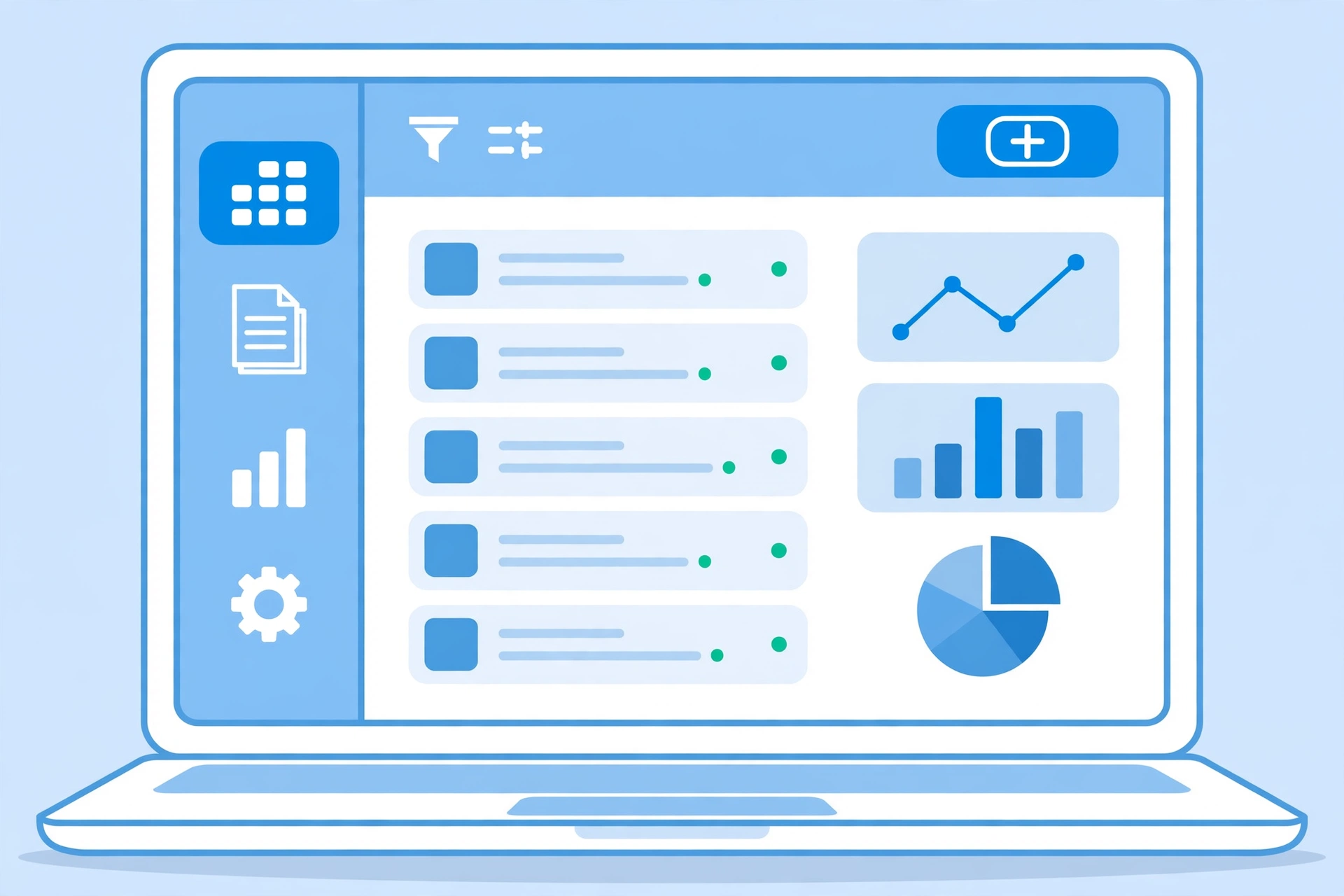
Once you log in, the dashboard splits into obvious sections. Here is what each area does, based on published guides:
| Dashboard Section | What It Does | Use It For |
|---|---|---|
| Posts | View, edit and manage all your published articles | Updating a live post, or removing one that is out of date |
| Drafts | Save work in progress before publishing | Writing in stages without going live early |
| Create New Post | Opens the editor to start a new article | Writing your next post |
| Categories | Assign content to a topic area (tech, health, business, lifestyle, etc.) | Keeping your posts organised and findable |
| Media | Upload and manage images for your posts | Adding featured and in-article images |
| Profile / Settings | Edit your author bio, display name and account details | Setting up how readers see you |
| Analytics | Track views, comments and engagement metrics | Seeing which posts readers actually open and read |
The interface is described across guides as clean and beginner-friendly, with quick-action buttons that save time — for example, jumping straight from the dashboard into a new post or into your drafts. The menu section opens posts, settings and other tools, so most tasks are one or two clicks from the dashboard home. You can also invite others to write for your blog and manage their posts from the dashboard, according to the platform’s own guides.
How to Publish Your First Post
The step-by-step process, as described in published guides, is:
- Log in with your registered email and password to reach the dashboard.
- Click “Create New Post” or “New Article”. This opens the editor area.
- Write your title first. It must be clear and compelling — it is the first thing readers and search engines notice.
- Write the body in the editor, adding formatting, headings and images as you go.
- Assign a category so the post sits in the right topic area.
- Save as a draft if you are not ready, or publish when the post is complete. Your article goes live on the platform immediately.
- Edit later if needed. Registered users can edit and update published posts at any time from the dashboard.
For a new writer, the most useful habit is the draft step: write, save as a draft, re-read the next day, then publish. A platform that makes publishing instant also makes publishing mistakes instant — the draft button is your safety net. The same discipline applies on a self-hosted site: our overview of About LogicalShout covers how small editorial teams keep quality up with an editing pass before anything goes live.
Analytics: What the Dashboard Shows You
UploadBlog’s dashboard includes built-in analytics, according to published guides: views, comments and engagement metrics, with audience demographics mentioned in some guides. That is enough to answer the two questions that matter most for a beginner — which posts are being read, and which topics should you write more of — without connecting a separate analytics tool.
Two honest notes. First, the exact analytics features are described by third-party guides, not confirmed from the platform’s own documentation in this article — check the dashboard yourself after signing up to see what is actually shown. Second, platform analytics measure the platform: if you later move to your own site, that history does not move with you. For writers who plan to build an audience they own, a self-hosted site with its own analytics is the long-term answer, and UploadBlog is the fast start.
UploadBlog vs Medium, Blogspot and WordPress
| Platform | Cost to start | Dashboard | Best for | Trade-off |
|---|---|---|---|---|
| UploadBlog | Free sign-up | Simple: posts, drafts, categories, media, analytics | Getting content live fast with no setup | Your content lives on their platform; limited control and SEO flexibility |
| Medium | Free to write | Minimal editor, built-in audience | Reaching readers without building an audience first | Limited customisation; monetisation rules set by Medium |
| Blogspot | Free (Google account) | Google’s Blogger dashboard | Simple free blogging on Google’s infrastructure | Dated design; limited modern features |
| WordPress (self-hosted) | Hosting + domain | Full WordPress admin with plugins and themes | Full ownership, control and SEO flexibility | You manage hosting, updates and security yourself |
The comparison makes the choice simple: if you want to publish today with zero setup, UploadBlog (or Medium) is the fastest route. If you want to build a site you own — with your own domain, your own SEO setup and your own audience data — a self-hosted WordPress site is the answer, and the dashboard you will learn there is the WordPress admin, not UploadBlog’s. Many writers do both: publish fast on a platform, and build the owned site in parallel. For the owned-site route, see our guide to software updates, which covers the maintenance a self-hosted site needs.
Limits and Things to Check Before You Commit
- Check the exact domain. UploadBlog.com is the platform; the-uploadblog.com and UploadArticle.com are different sites with different models. Confirm spelling, address, policies and contact details before creating an account or sending content.
- Confirm what is free. Published guides describe basic publishing as free with no payment wall. If the live site asks for payment for basic publishing, trust the live site over the guide — and reconsider before paying.
- Read the terms on ownership. Before publishing original work anywhere, check who owns the content, whether you can remove it, and what happens to it if the platform closes or changes its rules.
- Check the contributor model. A website can publish contributor articles without offering a self-service dashboard. Confirm on the live homepage, navigation, contact page and terms whether account creation, instant posting and scheduled publishing are actually available.
- Do not rely on platform SEO alone. A post on a free platform can rank, but the domain authority, links and audience belong to the platform. If search traffic is your goal, the long-term asset is a site you own — the same lesson as in our Team Frank TheStripesBlog overview: a publication is an asset you build, not a page you borrow.
Related Reading on SosoActive
- About LogicalShout: what it actually is
- Software updates ICFModGeeks: what updates do and how to manage them safely
- Team Frank TheStripesBlog explained
- Brandon about CloudySocial: who he is and what the site covers
Frequently Asked Questions
What is the UploadBlog dashboard?
The UploadBlog dashboard is the main control area you reach after logging in to UploadBlog.com. It is where you create, edit and manage blog posts, organise drafts and categories, upload media, adjust your profile and settings, and view analytics for your published articles. Published guides describe it as clean, intuitive and beginner-friendly.
Is UploadBlog free?
According to published guides, signing up and basic publishing on UploadBlog.com are free — you register with a name, email and password, verify your email, and can publish without a payment wall. Check the live site before relying on this: if it asks for payment for basic publishing, trust what the site itself says.
How do I log in to the UploadBlog dashboard?
After registering and clicking the verification link in your confirmation email, return to the UploadBlog.com login page and sign in with your registered email and password. You will land directly on the dashboard, where you can start creating, editing and publishing content.
Can I edit a post after publishing it on UploadBlog?
Yes. Registered users can edit and update published posts at any time from the dashboard — open the Posts section, choose the article, make your changes and save. The same applies to drafts, which you can keep unfinished until you are ready to publish.
What can I do from the UploadBlog dashboard?
Create new posts, manage published posts and drafts, assign categories, upload and manage images, edit your author bio and display name, adjust settings, view analytics (views, comments and engagement), and invite other writers to contribute, with their posts managed from the same dashboard.
Is UploadBlog the same as UploadArticle.com?
No. UploadBlog.com, UploadArticle.com and the-uploadblog.com are different sites with different models — do not treat them as interchangeable. Check the spelling, address, policies and contact details of the site you are actually using before creating an account or sending content.
Is UploadBlog good for SEO?
It is good for getting content live fast, and a post on the platform can be found by search engines. But the domain authority, links and audience belong to the platform, not to you — so if long-term search traffic and a brand you own are the goal, a self-hosted WordPress site is the stronger choice, with UploadBlog as a fast starting point rather than the final home.
Conclusion and Next Steps
The UploadBlog dashboard is exactly what it looks like: a simple control centre — Posts, Drafts, Create New Post, Categories, Media, Profile and Analytics — for a free platform that lets anyone publish without hosting, a domain or code. It is the fastest way to get words on the internet, and the honest trade-off is that the platform owns the home your words live in.
Your next step takes three minutes: go to UploadBlog.com (check the exact address), register, verify your email, and open the dashboard. Write one short post, save it as a draft, re-read it tomorrow, then publish. And if you find yourself publishing every week, start planning the site you will own — because the dashboard that matters most in the long run is the one on your own domain.
Last updated: November 3, 2026. Written by the SosoActive editorial team. This is an independent guide based on published guides and publicly verifiable information; it is not affiliated with UploadBlog. Check the live site for the current features, terms and pricing before relying on them.